
Recording Attendance in Moodle

Article sections
What is an attendance activity?
With the Attendance activity, teachers can record course attendance, and students can view their own attendance entries.
- A course can include several Attendance activities.
- Attendance sessions can be automatically added to the course calendar.
- It is best to keep all face-to-face meetings for a single group in the same Attendance activity so attendance rates are easier to follow. Create separate activities for day and blended-learning groups.
- By default, the system sends a reminder if attendance is about to fall below 70%. You can change the limit. To enable accurate calculations and reminders, add all upcoming sessions in advance.
Attendance status options (HAMK)
| Acronym | Description | Default score | Available to students | Open before the meeting | Auto-set if no response |
|---|---|---|---|---|---|
| LÄ | Present | 2 | always | No | No |
| MY | Late | 1 | always | No | No |
| SP | Agreed absence | 1 | always | Yes | No |
| PO | Absent | 0 | always | Yes | Yes |
Activity settings
- Students can mark their own attendance.
- The QR code changes every 15 seconds and remains valid for 2 seconds.
- Attendance is recorded during the session.
- The default session length is 60 minutes, but you can change it.
- Teachers see the weekly view by default.
- Calendar entries are created automatically for sessions.
In the mobile app
- Past sessions are visible for 6 hours.
- Upcoming sessions are visible 1 day in advance.
Default session settings
- A calendar entry is created automatically.
- Sessions are included in the absence report.
- Students can mark their own attendance.
- Sign-in opens 15 minutes before the session starts.
- A rotating QR code is enabled by default.
How to use Attendance
- Add an activity or resource and select Attendance.
Enter a clear activity name, for example, Face-to-face lessons.- Set the grading method (points or scale) and define the passing grade.
- Add a meeting or meetings.
- You can add a single meeting or multiple recurring meetings as a series.
- Set up self-registration for students.
- Allow registration.
- Consider whether to allow editing of the status.
- Choose whether to open registration before the meeting starts. The default is 15 minutes.
- If a student has not registered as present for a meeting, automatic registration will mark them as absent when the meeting ends.
- You can set a password. The QR code will appear automatically, and you can disable it from changing. However, we recommend enabling automatic QR code switching.
- To edit attendance statuses, open More > Attendance statuses in the activity and make the changes you need.
- To collect attendance with a QR code:
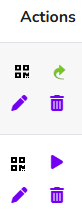
- Click the QR code icon in the Actions column. Students can scan the code in another tab. The code updates every 15 seconds.
- If no responses have been submitted, a purple arrow appears in Actions.
- After responses are received, the arrow turns green.
- Use the arrow icon to mark attendance or absences. Save manual entries with the button at the bottom of the page.
