
Trail – AV equipment booking service
Article sections
Trail service allows HAMK staff to book and borrow AV equipment such as cameras and microphones for teaching and communication use. The service is available with single sign-on (SSO) both via a web browser and via a mobile application for Android and iOS phones.
Introduction of the service
- Navigate to following address with your web-browser: hamk.trail.fi
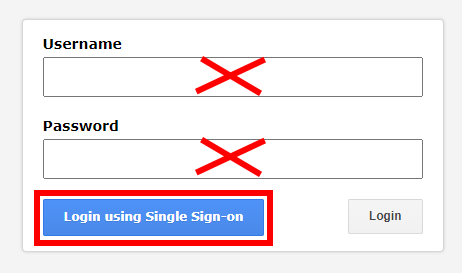
- press the button Login using Single Sign-on (do not fill in the Username and Password fields)
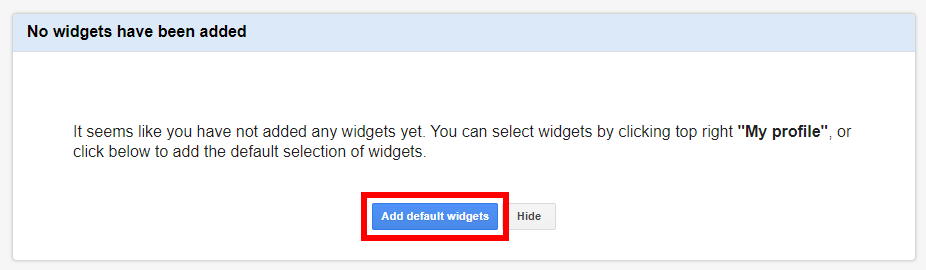
- Accept the default settings (widgets) from the Add default Widgets button
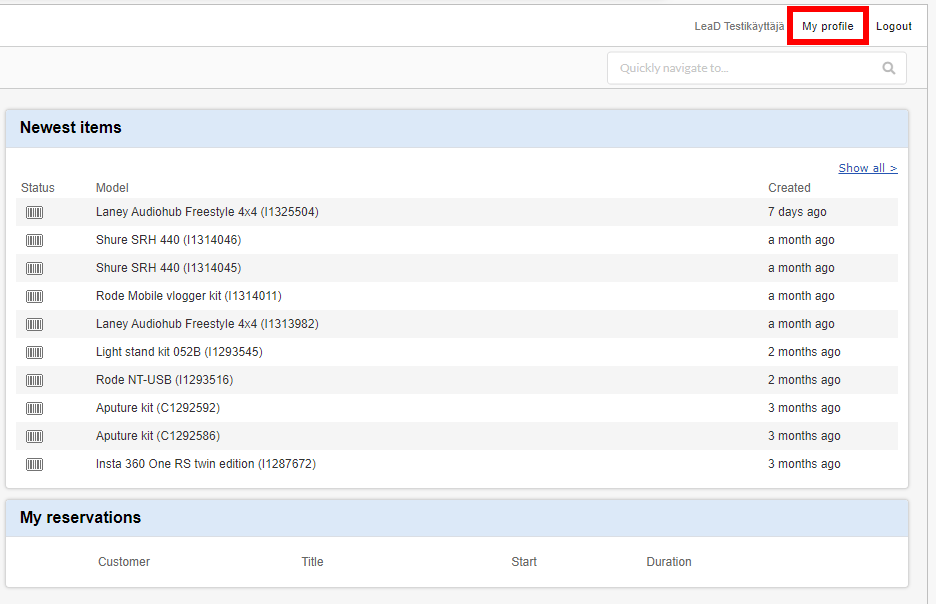
- First, go to the My Profile menu in the upper-right corner of the home page and update your user profile settings.
-
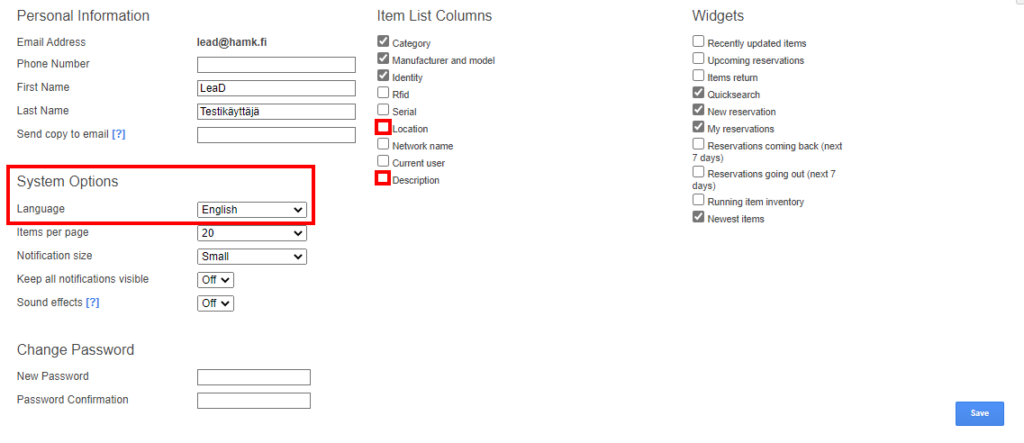
Change the application language under System Options / Language. Select the Location and Description checkboxes. Finally, click Save to save your changes.
Implementation of the mobile application
With the Trail mobile app, you can conveniently use most Trail functions:
- Creating a new reservation and editing the details of an active reservation
- Viewing equipment details
- Checking equipment locations
- Checking out (borrowing) and returning equipment
- Reporting equipment defects
With the Trail mobile application, you can read the device information from the QR code sticker attached to devices.
You can find the app on Google Play and the App Store by searching for trail asset management

When logging into the application, enter hamk in the address field. After this, click on the single sign-on link and select your own work account.


Booking devices (items)
Remember that instead of using the web interface, you can also conveniently make a reservation with the Trail mobile app. The web interface is useful when you are reserving a new device and want to view the device’s images, information, and instructions on the device card.
-
Open a web browser on your work computer and go to hamk.trail.fi
-
Click Login using Single Sign-on (do not enter anything in the Username and Password fields).
-
To create a reservation, use the Create New Reservation tool on the home page. Alternatively, select Reservations / All Reservations from the top menu and click New Reservation.
-
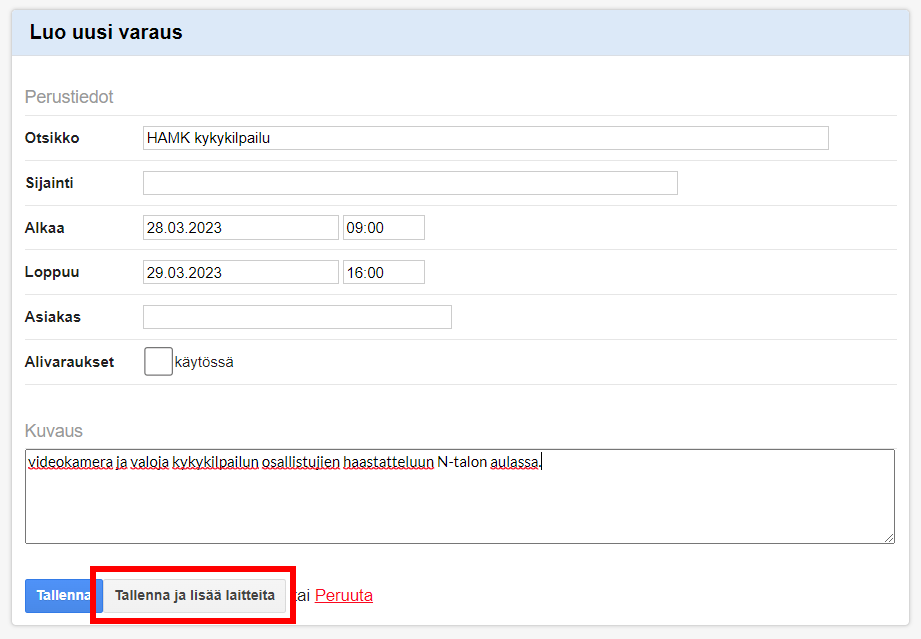
Enter a descriptive title and specify the start and end times for your reservation.
-
In the Description field, briefly explain what equipment you are reserving and what you intend to use it for.
-
Finally, click Create and add items. Alternatively, you can save the reservation without adding equipment (press create) and add the equipment later.
-
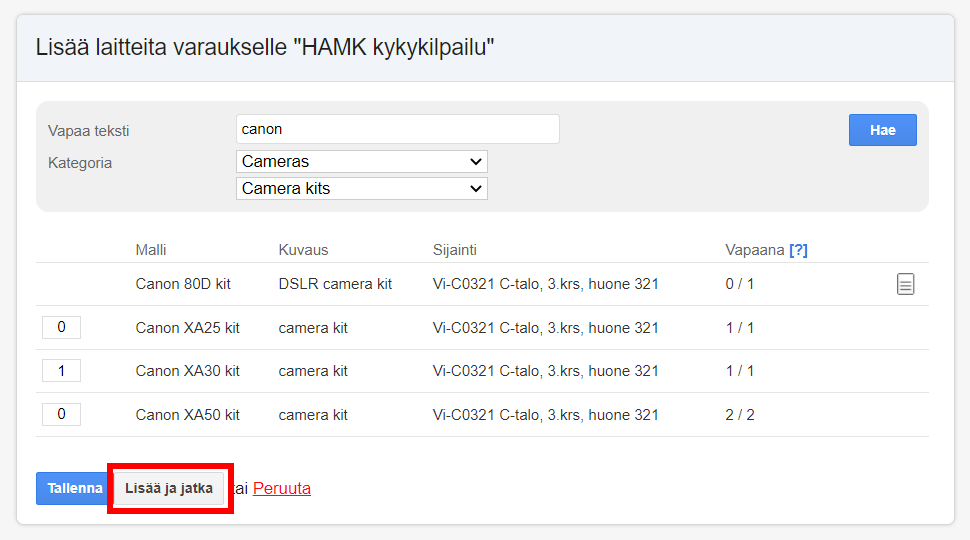
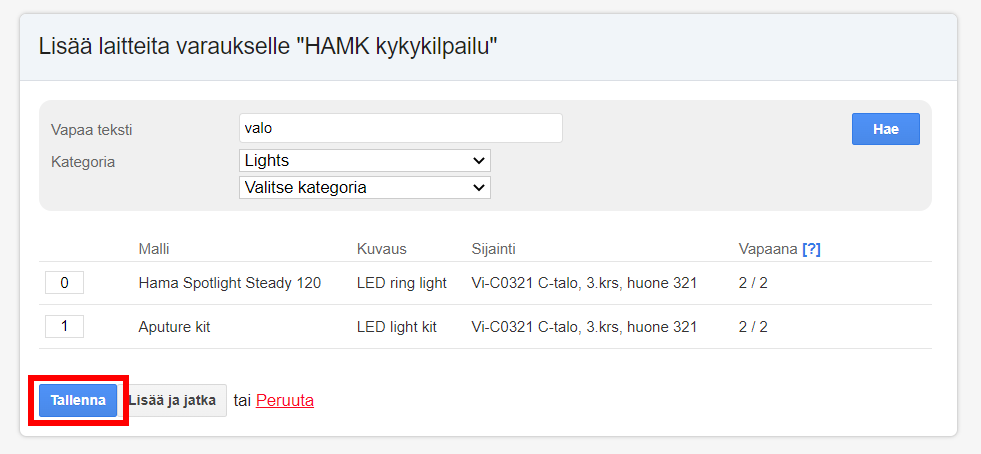
You can select equipment directly from the list displayed on the page or narrow down the results using the Free Text search field and the item category pop-up menu
-
The Location field indicates where the equipment must be collected and returned. The Availability field shows the total number of identical items available for loan and how many of them are currently available for the selected reservation period.
-
Enter the number of items you need in the box on the left side of the equipment entry and click Save. The equipment will then be added to your reservation for the selected period. If you need to add more items that are not visible in the current list (or if you are using filters), click Add and Continue to save your selections and search for additional equipment.
Picking up reserved devices (using the mobile app)
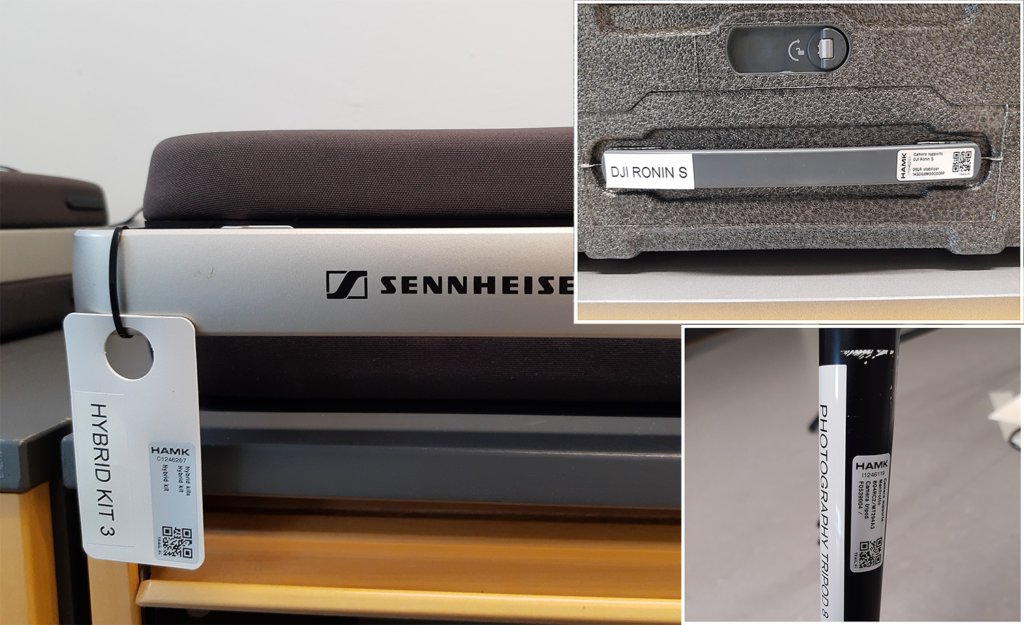
Once your reservation period has started, collect the equipment from the location specified in Trail. The equipment name can be found on the white identification label attached to its carrying case or bag. A silver-grey QR code sticker is located in the upper corner of the label. Scan this code with the Trail mobile app when collecting the equipment.
Some equipment does not have a carrying case or bag and therefore does not have a white identification label. In these cases, the QR code sticker is attached to a visible part of the equipment itself, usually next to a white name label.
-
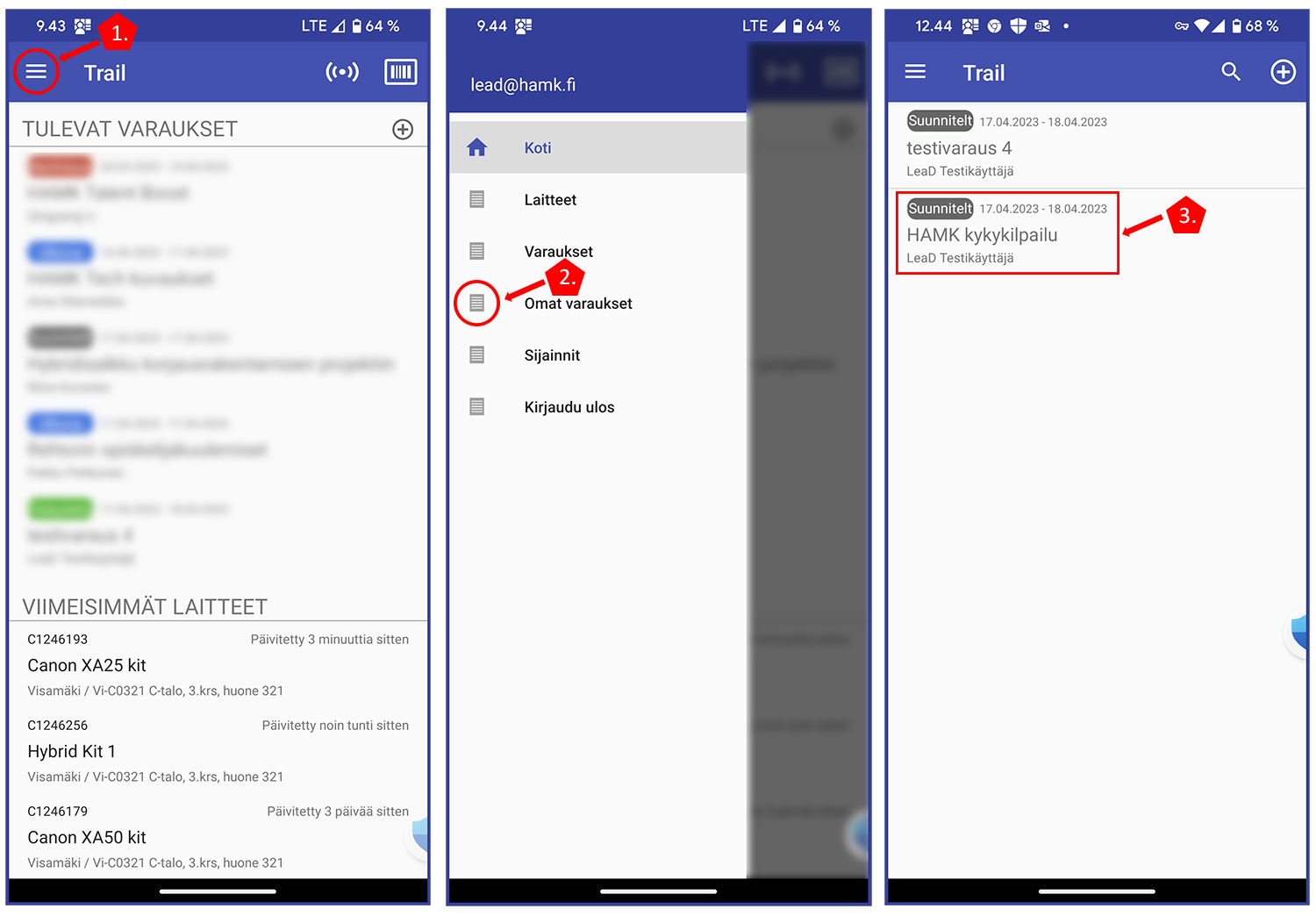
Open the navigation menu in the lower right corner of the Trail mobile app.
-
Select My Reservations.
- The My Reservations tab displays all the reservations you have made. Select the reservation containing the equipment you are collecting.
-
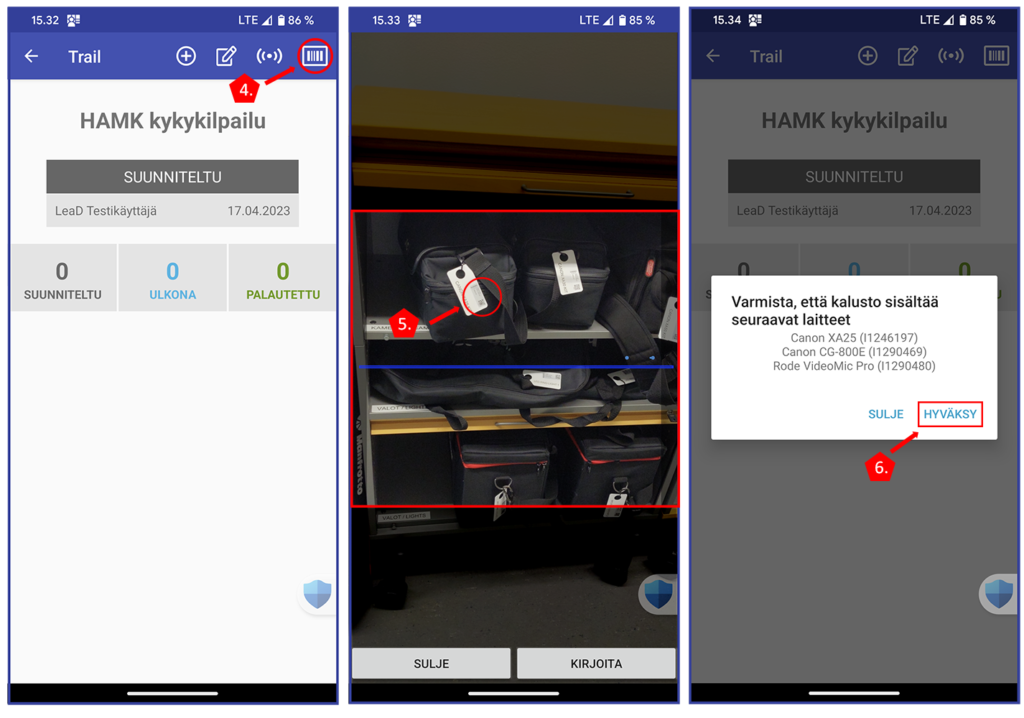
Open the QR code scanner in the lower right corner of the screen.
-
Hold your phone close to the white identification label so that the silver-grey QR code sticker is clearly visible.
-
Trail identifies the equipment and asks you to confirm that all the required accessories are included in the carrying case. Tap Accept to confirm.
-
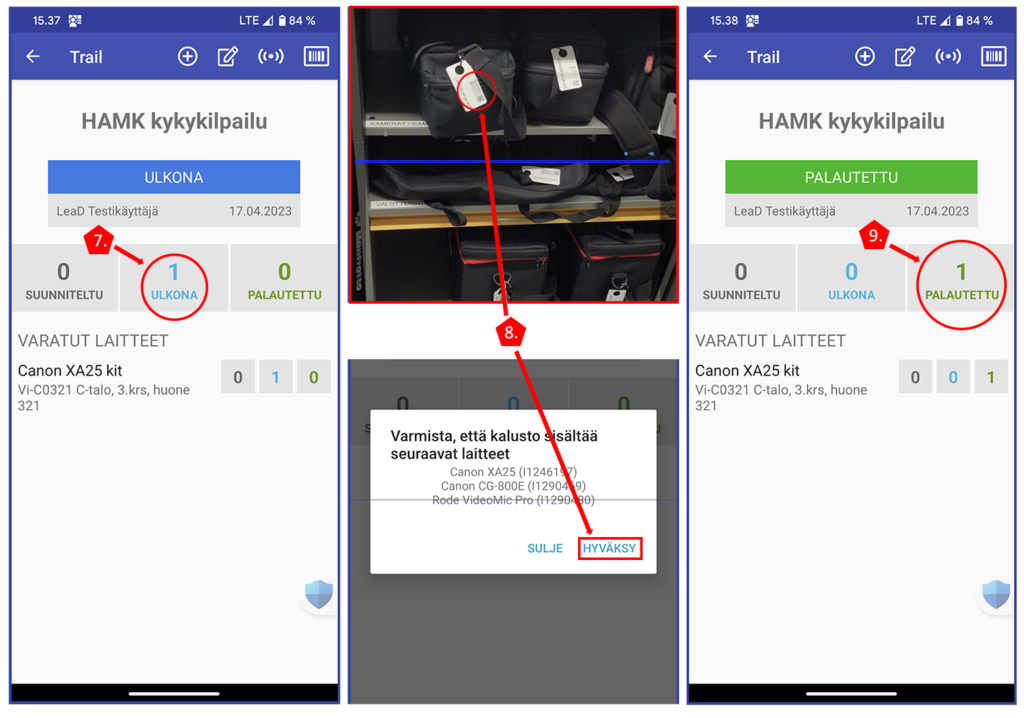
The reservation status changes from grey to blue (Checked Out), indicating that the reserved equipment has been collected.
- To return equipment using the mobile app, follow the same procedure as when collecting it: scan the QR code sticker.
-
Once the equipment has been returned, the reservation status changes to green (Returned), indicating that the equipment has been successfully returned. Please note that equipment returned early (before the reservation period ends) becomes immediately available for other Trail users to reserve.
Picking up reserved devices (no mobile app)
If there is no Trail mobile application in use, the collected devices must be registered immediately after pick up in the Trail Web portal.
-
On the Trail home page, open your reservation under My Reservations.
-
Find the equipment’s unique identifier on the QR code sticker next to the HAMK logo. The identifier begins with the letter C or I, followed by seven (7) digits (e.g. C1234567).
-
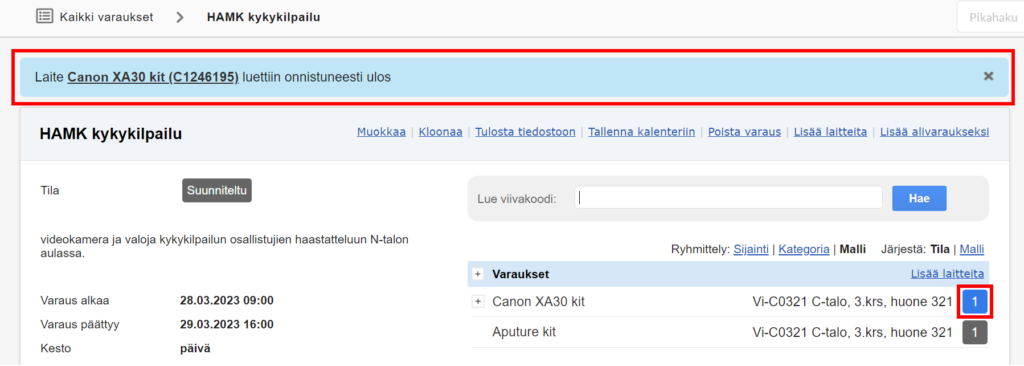
Enter the unique identifier in the Read Barcode field and click Go.
-
Check that all the required accessories are included and press Accept.
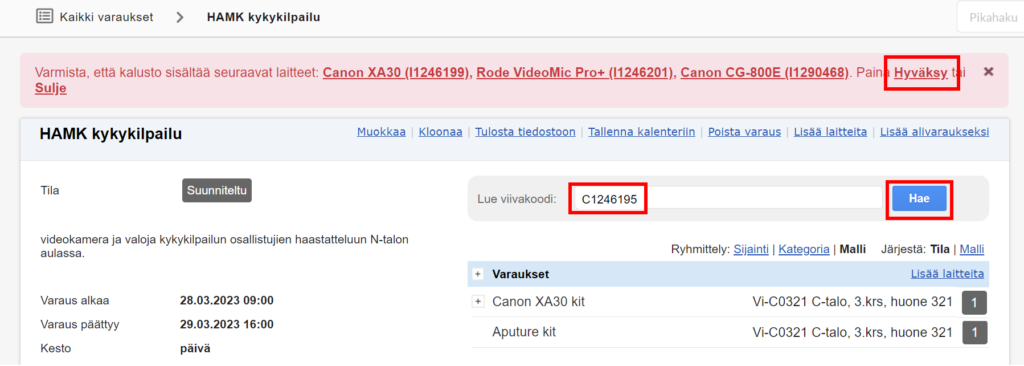
- Trail confirms that the equipment has been successfully checked out (collected). The grey square on the right side of the equipment entry turns blue to indicate this.
Returning devices and filing a defect report
Return device within the reservation time. Check that the device is neatly packed and that all parts are along. The conference microphone case (Sennheiser TeamConnect) should be put in charge when returned.
Read the device as returned either with the mobile application (the blue square turns into a green to indicate return) or in the Web portal by repeating steps 1-4 of the instructions under the title Retrieving reserved devices (no mobile application).
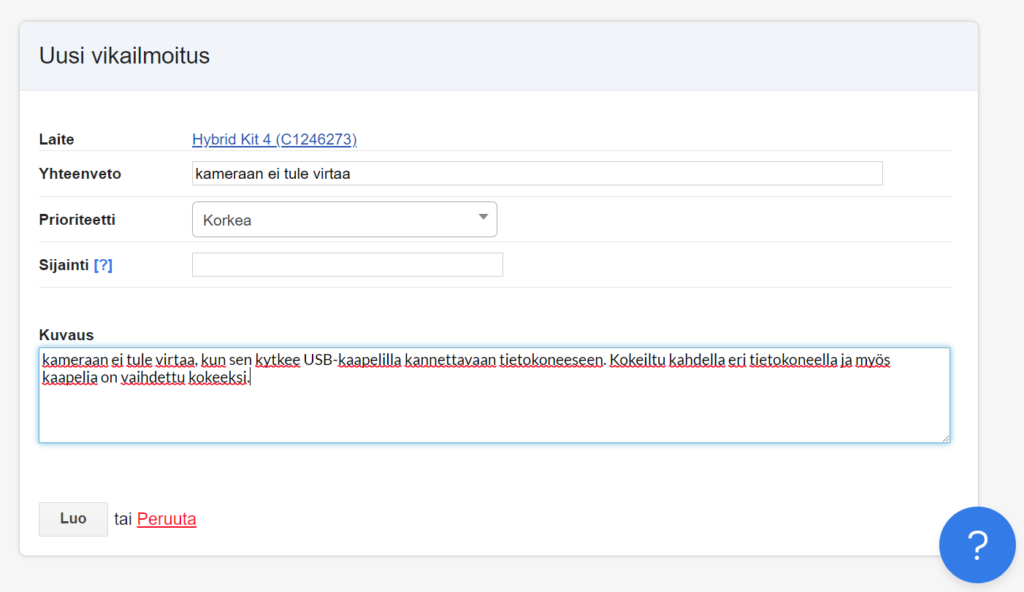
Remember to file a defect report if parts of the device have been lost, the device is damaged or does not work properly! Reporting a fault can be done both with the mobile application and the web portal.
-
Enter the equipment’s unique identifier in the Item Search field on the home page. The equipment details card opens, allowing you to view more information about the item.
-
Click Report defect in the upper-right corner of the equipment details card.
- Fill in the required information carefully and submit the report (press Create).
Trail – rules of use
The equipment may not be handed over to a person outside of HAMK. The person who made the reservation is responsible for the proper storage and use of the equipment during the reservation period. This also applies to the situation where the devices are used by someone other staff member than the person owning the reservation in Trail
Please book the device only for the time you need it. The maximum booking time is 7 days for Hybrid kits and 14 days for other devices. Bookings longer than this must be inquired with the HelpDesk ticket
If necessary, the booking can be extended during the reservation period. However, the total booking time may not exceed the maximum booking times mentioned above.
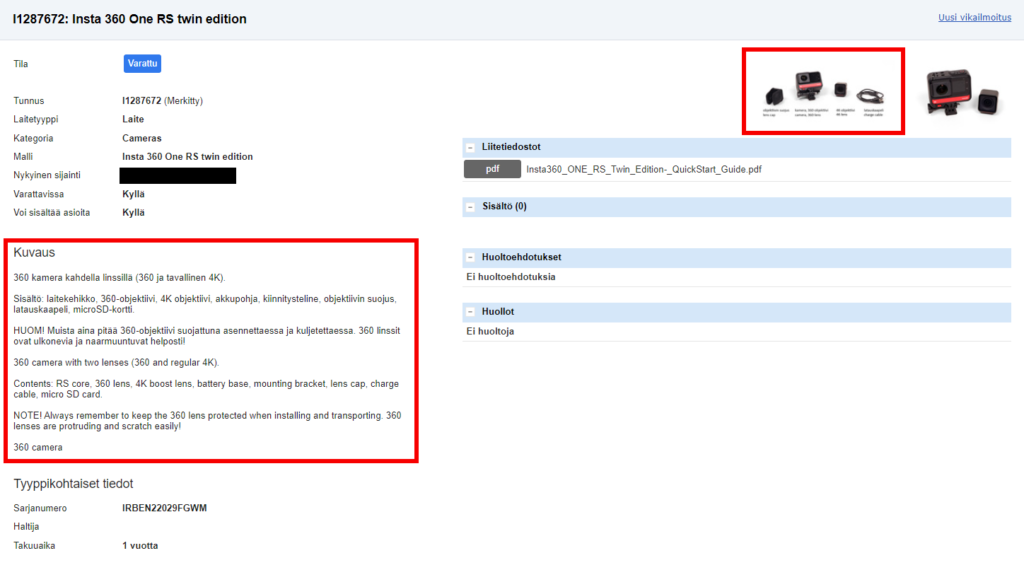
When picking up the device, check that all the necessary parts are in the transport case. The parts list can be found on the device card in the Trail web portal. You can find the device card using the Quicksearch widget on the front page or by navigating from the top bar of the Trail web portal Items / All items and selecting the desired device (item) from the list.
Return the device within the reservation time. Check that the device is neatly packed and that all parts are in the transport case. Put the conference microphone case (Team Connect Wireless) on charge when returned
Remember to file a defect report if parts of the device have been lost, the device is damaged or does not work properly!
